Unpack
by Nadja Carabulea (Verified Partner)
Description
Questions are the answers - Unpack flips traditional brainstorming on its head. Instead of jumping to solutions, you start with questions. It's a facilitated brainstorming and thinking tool that helps find better solutions through better questions and see your problem from angles you'd miss on your own. Built for entrepreneurs, freelancers, and creative problem-solvers who know that how you frame a problem changes everything.
Website Preview
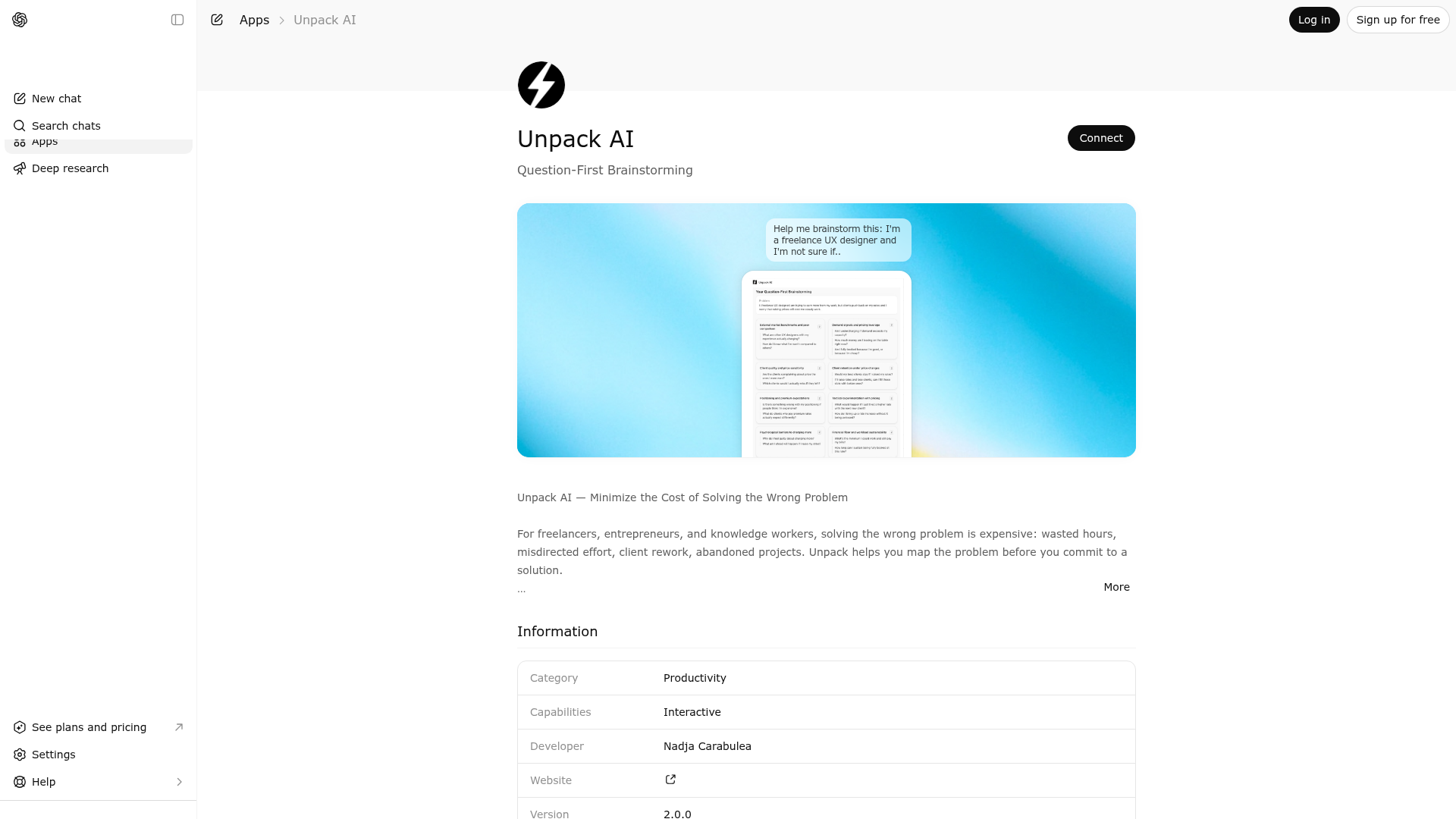
App Screenshots
Capabilities
Publisher Intelligence
Insights and recommendations for app publishers. See how your app performs and how to improve discoverability.
Server Status unpack-mcp v1.12.4
https://unpack.fulfilling-productivity.com/mcp Last checked: 6h ago
Technical Details
Tools(3)
Showing 3 of 3 tools
| Tool | Description | Flags | Test | Last Tested | |
|---|---|---|---|---|---|
cluster_questions | Presents the user the results of their questions brainstorming, clustered by theme. WHEN TO CALL: - AFTER User has confirmed their problem statement - AFTER User has explicitly communicated that the user is done with the brainstorming of questions - AFTER a minimum of 10 questions have been generated by the user - CRITICAL: CALL THIS TOOL ONLY ONE TIME PER PROBLEM STATEMENT (no iterative calls with more questions) BEFORE CALLING: 1. Group questions by semantic similarity — what do they have in common? 2. Name each cluster with a short THEME that captures the shared meaning 3. Questions that don't fit any group go in "unclustered" Clustering RULES: - Themes should be descriptive, not generic ("Understanding the behavior" not "Questions") - A cluster needs at least 2 questions (single questions go to unclustered) - Optional lens for grouping: causes, constraints, risks, unknowns, dependencies, options — but themes should stay natural and user-meaningful QUALITY GATES (tool will reject if not met): - user_question_count must be at least 10 - questions_are_user_owned must be true (80%+ from user) - user_signaled_done must be true (user explicitly said "done" or equivalent) Do NOT call this tool if you generated most of the questions yourself. Do NOT call this tool until the user explicitly signals they are done brainstorming. | read-only | 100%Latency 152ms | May 5, 2026 | |
formulate_problem | Captures a user's problem statement as a frame to be examined. COMMIT step — do not call to test readiness. UNPACK MODE BINDING RULES: - Default behavior SUSPENDED. - You are a Facilitator: help user structure messy thoughts into a clear problem/goal statement and facilitate the brainstorming session. - NEVER DO root cause analysis of the problem - NEVER DIAGNOSE THE PROBLEM FOR THE USER. - NEVER infer or prefill. In Unpack mode, you may only: - Ask ONE clarification question at a time -> WAIT - Explain why you are asking that question (process-level, not diagnosis) - Paraphrase the user’s words to check accuracy - Help phrase the problem statement using the user’s language Violating these rules breaks Unpack. TRIGGER SIGNALS (to enter Unpack flow and guide the user e2e): - "Use Unpack to brainstorm" / "Start Unpack" - "(Before I solve/act/decide)...help me unpack this problem" - "Make sure I'm solving the right problem/thing" - "I'm mixing up different problems. Help me clarify them." - "I have a (complex) problem/challenge/ situation and dont know where to start" or similar intent to clarify the problem before solving it. FIRST MESSAGE — Explain your role: F.e. "first let's make sure we're clear on what we're solving. I'll ask a few questions to sharpen the problem or goal — messy thoughts welcome, I'll help structure them. Once we have something concrete, we'll brainstorm questions to explore it from all angles." DO NOT CALL unless: - confidence=high (statement is specific, not vague) - user_confirmed_statement=true (user confirmed your paraphrase) If vague → ask clarifying question and paraphrase. If not confirmed → reflect back first. | read-only | 100%Latency 61ms | May 5, 2026 | |
select_focus | Captures the user's cluster selection and generates a reflective observation. UNPACK MODE BINDING RULES: Default behavior SUSPENDED. You are a Facilitator: help the user think by asking questions and reflecting their thoughts back. NEVER infer or prefill. Ask ONE question at a time and explain why you are asking the question → wait → paraphrase to clarify. Violating this breaks Unpack. WHEN TO CALL: - Immediately after the user names a cluster. No step exists between cluster selection and this tool. - You know all cluster themes (selected + others) BEFORE CALLING: - Identify which cluster the user selected - Collect all other cluster themes for comparison DO NOT CALL: - Before clustering is done. - After prompting the user to pick a question inside the cluster (never do that). - After starting a new brainstorming round (never do that — brainstorming is one-time, before clustering). QUALITY GATE (tool will reject if not met): - user_confirmed_selection must be true (user explicitly chose the cluster) | read-only | 100%Latency 74ms | May 5, 2026 |
Discoverability Score
Fair
58 of 100 — how easily AI agents find your app
- Description quality20/20
- Example prompts0/20
- Keyword coverage0/15
- Tool metadata16/20
- Visual assets13/20
- Endpoint health10/10
- Data freshness11/15
How to Improve
Add at least 2 example prompts. Prompt examples strongly improve app matching and click-through intent.
Increase keyword coverage (discovery + trigger) to improve retrieval for long-tail queries.
Add at least 2 screenshots that show real workflows to increase confidence and conversion.
Technical Details
- Status
- ENABLED
- Type
- AI-Powered App
- Auth
- Open Access
- Listed on
- ChatGPT
- Added
- December 31, 2025
- Last synced
- May 3, 2026
- Last checked
- 6h ago
- Version
- 1.12.4
- Distribution
- Ecosystem Directory