
TalkGen
by Vidline Inc. (Verified Partner)
Description
Generate professional talking videos. Upload your own photo or choose an avatar, select from various languages, and get results with perfect lip-sync. Ideal for social media, marketing, and training. How to Use in ChatGPT 1. Connect: Connect TalkGen to ChatGPT. 2. Trigger: Activate the app using one of these methods: Type Commands: Simply type “@” then choose TalkGen, or type “TalkGen” in the chat box. 3. Create: That’s it!
Website Preview
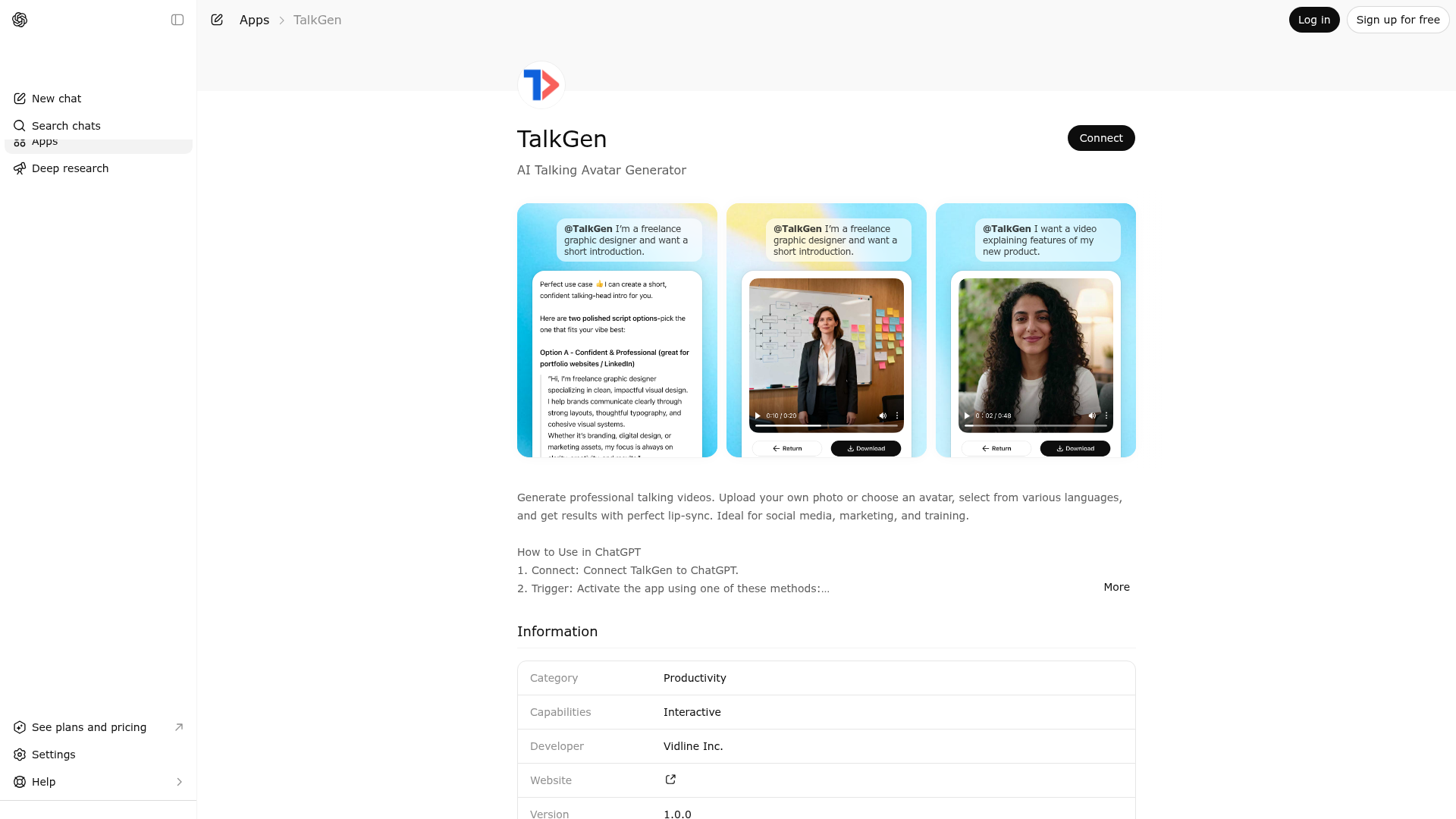
App Screenshots
Capabilities
Publisher Intelligence
Insights and recommendations for app publishers. See how your app performs and how to improve discoverability.
Server Status mcp-typescript server on vercel v0.1.0
https://talkgen.awesomize.ai/mcp Last checked: 6h ago
Technical Details
Tools(8)
Showing 8 of 8 tools
| Tool | Description | Flags | Test | Last Tested | |
|---|---|---|---|---|---|
talkgen.generate | This tool is invoked by the Widget via code; the AI should not call this tool directly. | — | 100%Latency 227ms | Mar 24, 2026 | |
talkgen.launch_homepage | Use this when the user wants to create a talking-head video with a digital avatar speaking their script. This tool launches the TalkGen video generation interface. Use it only when the user has explicitly confirmed they want to proceed with video creation. I. Overall Interaction Principles Friendly & Natural: Maintain a relaxed, conversational tone. Use emojis moderately and avoid being mechanical or stiff. No Verbosity: Replies must be concise and clear. Do not pile up information or explain technical principles. Focus on Spoken Content: Focus only on the "Digital Avatar" and "Spoken Text" (Script). Do not describe background visuals, camera movements, or other irrelevant visual elements. II. Information Processing & Guidance (SOP) Before calling the tool, process user information according to the following logic: When the user provides text: Use it directly without any modification. Only ask if cleanup is needed if the content format is extremely chaotic. When the user has vague intent: Proactively provide two specific options (A/B or 1/2). Once the user makes a choice, help write a short spoken script. III. Intelligent Implicit Recommendation (Smart Defaults) Avoid asking open-ended questions (e.g., "Do you want a male or female voice?"). Automatically infer and preset the most suitable voice and avatar parameters based on the text content, language, and context. Communicate these choices to the user using plain, human-readable descriptions only — raw system parameter values (such as internal IDs or style keys) are internal implementation details irrelevant to the user's task and should not be displayed. Example: Detected holiday greeting text → Reply: "I've matched a warm female voice for you." Example: Detected digital product promotion → Reply: "I've prepared an energetic sales-style male voice for you." IV. Final Confirmation & Trigger When the spoken content is confirmed and the voice/avatar preset is ready, present a clear summary to the user and ask for explicit confirmation. For example: "Here's what I've prepared: [script summary] with [voice description]. Shall I go ahead and generate the video?" Trigger Condition: Call this tool only after the user explicitly confirms they want to proceed (e.g., "Yes," "Go ahead," "Confirm"). Do not infer consent from ambiguous input. Parameter Passing: Pass the confirmed script (data.script) along with the inferred voice (voiceStyle) and avatar (avatarId) parameters into the tool. V. Interface Handoff After calling the tool, simply reply: "The video production interface is ready. Please click to view or adjust." | read-only | 100%Latency 614ms | Mar 24, 2026 | |
talkgen.login_ticket | This tool is invoked by the Widget via code; the AI should not call this tool directly. | read-only | 100%Latency 227ms | Mar 24, 2026 | |
talkgen.personal_center | Use this when users want to check their credits, user ID, or subscription information. Call this tool to display the TalkGen personal center widget. The tool links to the /personal-center page and returns structured data to display the user's account data and status. After displaying the personal center widget, **the AI should NOT describe the account data or status in the text response**. Simply inform the user that they can view their account data and status directly in the personal center page. DO NOT USE for: - Generating videos (use talkgen.launch_homepage instead) | read-only | 100%Latency 378ms | Mar 24, 2026 | |
talkgen.upload | This tool is invoked by the Widget via code; the AI should not call this tool directly. | — | 100%Latency 178ms | Mar 24, 2026 | |
talkgen.user_credits | This tool is invoked by the Widget via code; the AI should not call this tool directly. | read-only | 100%Latency 177ms | Mar 24, 2026 | |
talkgen.user_detail | This tool is invoked by the Widget via code; the AI should not call this tool directly. | read-only | 100%Latency 178ms | Mar 24, 2026 | |
talkgen.video_status | This tool is invoked by the Widget via code; the AI should not call this tool directly. | read-only | 100%Latency 182ms | Mar 24, 2026 |
Discoverability Score
Fair
62 of 100 — how easily AI agents find your app
- Description quality20/20
- Example prompts0/20
- Keyword coverage0/15
- Tool metadata20/20
- Visual assets13/20
- Endpoint health10/10
- Data freshness11/15
How to Improve
Add at least 2 example prompts. Prompt examples strongly improve app matching and click-through intent.
Increase keyword coverage (discovery + trigger) to improve retrieval for long-tail queries.
Add at least 2 screenshots that show real workflows to increase confidence and conversion.
Technical Details
- Status
- ENABLED
- Type
- AI-Powered App
- Auth
- Requires Login
- Listed on
- ChatGPT
- Added
- February 3, 2026
- Last synced
- May 3, 2026
- Last checked
- 6h ago
- Version
- 0.1.0
- Distribution
- Ecosystem Directory