Dunzo - Task Assistant
Description
Dunzo is a conversational task assistant that helps you capture and organize tasks through natural conversation. What you can do: • Capture quick tasks: "remind me to call mom" or "buy milk" • Manage ongoing lists: groceries, packing lists, movies to watch • Plan projects: break down bigger goals into steps Just tell ChatGPT what you need to do, and Dunzo tracks it for you. No forms, no apps to switch between – just chat. Dunzo is an independent product and is not affiliated with any other companies or services.
Website Preview
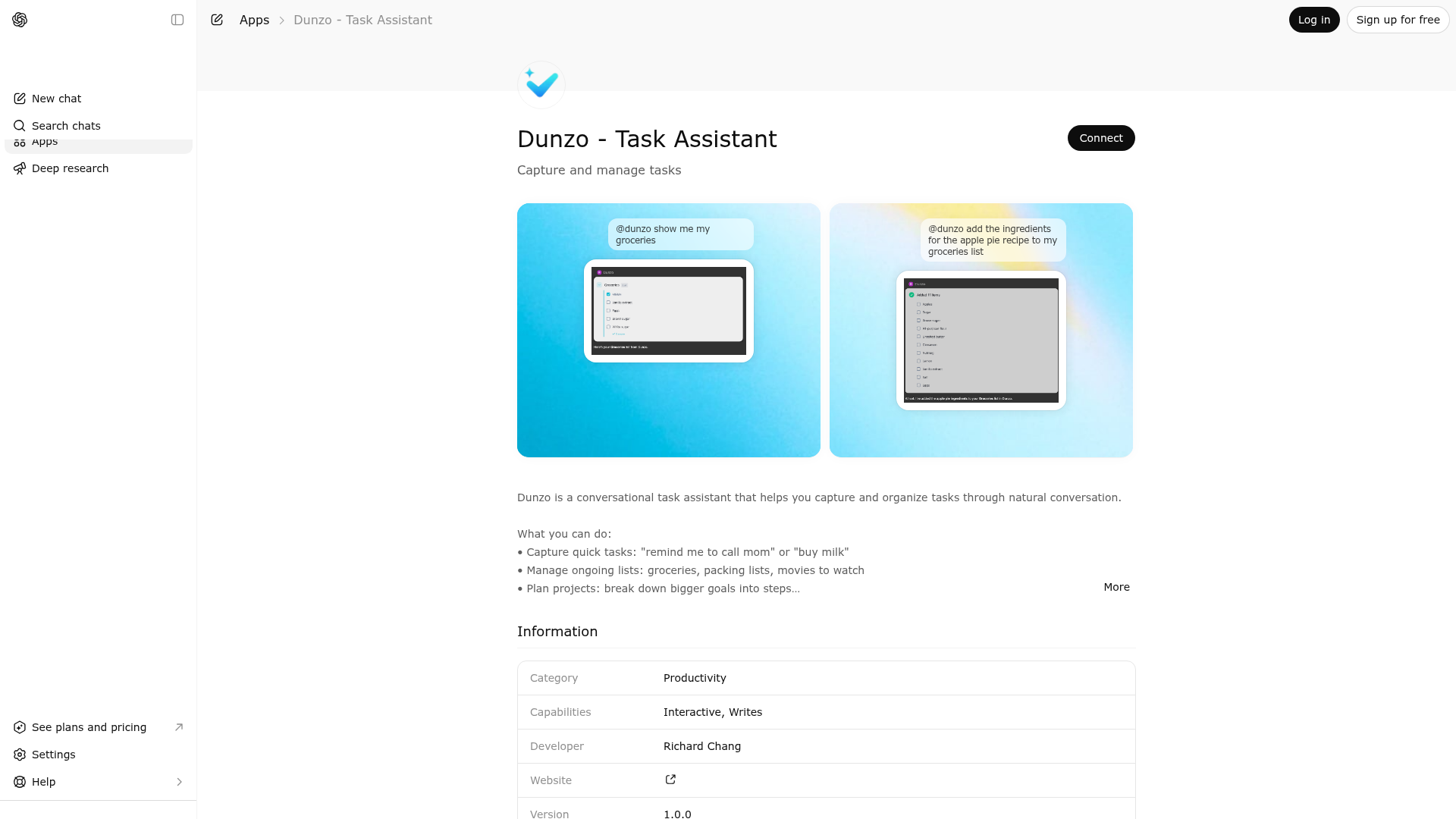
App Screenshots
Capabilities
Publisher Intelligence
Insights and recommendations for app publishers. See how your app performs and how to improve discoverability.
Server Status dunzo v0.1.0
https://api.itsdunzo.com/mcp Last checked: 5h ago
Technical Details
Tools(9)
Showing 9 of 9 tools
| Tool | Description | Flags | Test | Last Tested | |
|---|---|---|---|---|---|
archive_task | Archive a task to hide it from default task views. When to use: - User wants to hide a completed project they no longer need to see - User wants to archive an old grocery/shopping list - User says "archive this", "hide this list", "I don't need this anymore" - Cleaning up old tasks without deleting them Works on ALL task types: - FINITE tasks: Archive completed or abandoned tasks - PROJECT tasks: Archive completed projects - ONGOING_LIST tasks: Archive lists no longer in use (e.g., old "Groceries" list) Unlike mark_complete: - Works on ONGOING_LIST tasks (lists cannot be "completed", only archived) - Semantic: "archive" = hide from view, "complete" = finished Archived tasks can be restored later (unarchive feature coming soon). This is a GATED action - only call after explicit user confirmation. IMPORTANT: The result is displayed in a visual widget. Do NOT repeat the task name in your text response - just give a brief acknowledgment like "Archived!" or "Done." | destructive | 0%Latency 433ms | 1d ago | |
create_subtasks | Add subtasks to an existing task. Call this AFTER create_task when breaking down work. Use for: - Breaking down a PROJECT into actionable steps ("Plan vacation" → "Book flights", "Reserve hotel", "Make itinerary") - Adding items to an ONGOING_LIST ("Groceries" → "Milk", "Eggs", "Bread") Rules: - All subtasks are FINITE type (they can be completed individually) - Cannot add subtasks to a subtask (only one level of nesting) - Cannot add subtasks to a completed task (except ONGOING_LIST) PRESERVING TIMES on restructure: if you are creating a subtask out of an existing top-level task (e.g. moving "Provide presentation at 8:15 AM" under a project), you MUST copy the original task's `dueAt` and `remindAt` onto the new subtask. The same TZ-anchoring rules from create_task apply — use the user's `userTimezone` from prior tool responses; do not assume UTC. IMPORTANT: The added items are displayed in a visual widget above your response. Do NOT list the items in your text response - just confirm briefly like "Added!" or "Got it, I've added those items." | — | 0%Latency 221ms | 1d ago | |
create_task | Create a new task. Use this for any user request to track, remember, or do something. Task types: - FINITE (default): One-time tasks with clear completion ("buy milk", "send email to John") - PROJECT: Multi-step tasks needing planning ("plan vacation", "write quarterly report") - ONGOING_LIST: Never-ending lists that persist ("groceries", "movies to watch", "gift ideas") For simple capture ("remind me to X", "add X to my list"), just provide the title. All other fields have sensible defaults. ⚠️ TIME-FIELD RULES (read this BEFORE setting dueAt or remindAt): 1. TIMEZONE — Dunzo stores its own timezone for the user, which may differ from the timezone known to your environment. Use ONLY the timezone Dunzo provides. To learn it, check the `userTimezone` field returned by ANY prior Dunzo tool response in this conversation. If you have not yet seen a Dunzo tool response and the user mentions a relative time like "4 PM", "tomorrow", "Friday", you MUST first call `show_tasks` with no arguments to fetch `userTimezone` from the response. Then act on the value: - If `userTimezone` is a real IANA zone (e.g., "America/New_York"): proceed with create_task, anchoring all times to that zone. - If `userTimezone` is "UTC" (= "Dunzo doesn't know yet"): you MUST follow this exact two-step recovery — do NOT skip create_task and do NOT pretend the task was created: Step A. Call create_task NOW with title + intent only. Do NOT include dueAt or remindAt fields. The task gets tracked even though the time is missing. Step B. In your text response, explicitly ask: "Created the task — what timezone should I use for [the time the user mentioned]?" Once the user answers, call update_task_fields to set BOTH dueAt and remindAt to the correct anchored time. This two-step recovery is REQUIRED because: (a) silently skipping create_task and claiming success is a hallucination users will never notice until the missing reminder doesn't fire, (b) using your environment's timezone, the user's profile timezone, or your locale inference is FORBIDDEN — only an IANA zone the user states in this conversation OR a non-UTC `userTimezone` from Dunzo is valid. 2. COUPLING — When the user mentions a SINGLE time (whether they phrase it as "due X", "at X", or "remind me at X"), set BOTH `dueAt` and `remindAt` to that same time. Every consumer task app (Apple Reminders, Google Tasks, Things) couples them by default; the reminder fires at the deadline. Decouple ONLY when the user explicitly states two times, e.g. "due Friday, remind me 2 days before." IMPORTANT: The created task is displayed in a visual widget above your response. Do NOT repeat the task details in your text response - just confirm briefly like "Created!" or "Got it, I've added that." (EXCEPTION: when in the timezone recovery flow above, your response MUST contain the timezone-clarification question — that overrides the brevity rule.) | — | 0%Latency 195ms | 1d ago | |
get_task | Get a single task by ID with its subtasks and summary. Use this to: - Get full details of a specific task - See subtasks of a project or list - Check current status before making updates Returns the task with its subtasks (if any) and summary (if PROJECT). IMPORTANT: Task details are displayed in a visual widget above your response. Do NOT repeat the task title, subtasks, or details in your text response - the user can already see them. Just acknowledge briefly. | read-only | 0%Latency 235ms | 1d ago | |
mark_complete | Mark a task as completed (finished/done). When to use: - User says "done", "finished", "completed that", etc. - The work is actually finished - semantic meaning is "I accomplished this" - For FINITE tasks: can complete directly from PLANNED or IN_PROGRESS - For PROJECT tasks: typically complete from IN_PROGRESS or READY_FOR_REVIEW Complete vs Archive (important distinction): - mark_complete: The task is DONE, work is finished (e.g., "I finished the report") - archive_task: Hide from view, may not be done (e.g., "I don't need this list anymore") - ONGOING_LIST tasks can ONLY be archived (they're never "done" - use archive_task instead) Preconditions: - Task must be FINITE or PROJECT (not ONGOING_LIST) - Task must be in a status that allows completion This is a GATED action - only call after explicit user confirmation for important tasks. IMPORTANT: The completion result is displayed in a visual widget. Do NOT repeat the task name or details in your text response - just give a brief acknowledgment like "Done!" or "Marked as complete." | — | 0%Latency 193ms | 1d ago | |
reopen_task | Reopen a completed task, setting its status back to IN_PROGRESS. When to use: - User wants to undo a completion ("actually, that's not done yet") - User clicked on a completed checkbox to uncomplete it - The work was marked done prematurely This reverses a mark_complete action. IMPORTANT: The reopened task is displayed in a visual widget. Do NOT repeat the task name in your text response - just give a brief acknowledgment like "Reopened!" or "Got it, marked as in progress again." | — | 0%Latency 246ms | 1d ago | |
show_tasks | Show the user's tasks. This is the ONLY tool for viewing tasks. REQUIRED: If the user mentions a specific list/project name, you MUST pass query with that name: - "show my grocery list" → show_tasks({ query: "grocery" }) - "what's on my doco project" → show_tasks({ query: "doco" }) - "my movies to watch" → show_tasks({ query: "movies" }) Only omit query when showing ALL tasks: - "show my tasks" → show_tasks({}) - "all my projects" → show_tasks({ taskType: "PROJECT" }) Other filters: - "tasks due today" → show_tasks({ dueBefore: "2024-01-15T23:59:59Z" }) - "completed tasks" → show_tasks({ includeCompleted: true }) - "overdue tasks" → show_tasks({ overdue: true }) The query parameter enables instant subtask display. Results appear in a visual widget - just acknowledge briefly like "Here's your grocery list". | read-only | 0%Latency 197ms | 1d ago | |
smart_reorder_tasks | Intelligently reorder tasks based on natural language instructions. When to use: - User says "reorder my groceries by store section" - User says "prioritize urgent items first" - User says "sort my tasks by importance" - User says "group similar items together" How it works: - Finds tasks by query (list/project name) OR parentTaskId OR uses provided taskIds - Uses AI to determine the optimal order based on the instruction - Updates the sort order so the new arrangement persists REQUIRED: You must provide ONE of these to identify which tasks to reorder: - query: The name of a list/project (e.g., "groceries", "shopping list") - parentTaskId: ID of a parent task whose subtasks should be reordered - taskIds: Direct list of task IDs to reorder IMPORTANT: Confirm the reorder briefly like "Reordered your list!" - don't list all the items. | — | 0%Latency 205ms | 1d ago | |
update_task_fields | Update basic fields on a task like title or due date. Use for: - Changing a task title ("rename it to X") - Setting or clearing due dates ("make it due Friday", "remove the deadline") Cannot change: status (use mark_complete), task type. ⚠️ TIME-FIELD RULES (read this BEFORE setting dueAt or remindAt): 1. TIMEZONE — Dunzo stores its own timezone for the user, which may differ from the timezone known to your environment. Use ONLY the timezone Dunzo provides. Check the `userTimezone` field in any prior Dunzo tool response in this conversation. If you have not seen one yet and the user mentions a relative time, call `show_tasks` first to fetch `userTimezone`. - If `userTimezone` is a real IANA zone: proceed, anchoring the new times to that zone. - If `userTimezone` is "UTC" (= unknown): do NOT call update_task_fields with any time field, and do NOT pretend the change was made. Instead, in your text response ask: "What timezone should I use for [the time]?" Once the user answers, call update_task_fields once with both `dueAt` and `remindAt` set. Using your environment's timezone, the user's profile timezone, or locale inference is FORBIDDEN. 2. COUPLING — When the user re-times a task with a SINGLE time, update BOTH `dueAt` and `remindAt` to it. Decouple ONLY when the user explicitly states two times, e.g. "keep the Friday deadline but remind me Wednesday too." | — | 0%Latency 205ms | 1d ago |
Discoverability Score
Fair
55 of 100 — how easily AI agents find your app
- Description quality20/20
- Example prompts0/20
- Keyword coverage0/15
- Tool metadata20/20
- Visual assets5/20
- Endpoint health10/10
- Data freshness11/15
How to Improve
Add at least 2 example prompts. Prompt examples strongly improve app matching and click-through intent.
Increase keyword coverage (discovery + trigger) to improve retrieval for long-tail queries.
Provide a stable HTTPS logo URL (avoid connectors://) so cards render consistently across clients.
Add at least 2 screenshots that show real workflows to increase confidence and conversion.
Technical Details
- Status
- ENABLED
- Type
- AI-Powered App
- Auth
- Requires Login
- Listed on
- ChatGPT
- Added
- January 10, 2026
- Last synced
- May 3, 2026
- Last checked
- 5h ago
- Version
- 0.1.0
- Distribution
- Ecosystem Directory