
Constant Contact
by Constant Contact (Community)
Description
Go from email idea to a polished, ready-to-send campaign with the Constant Contact app. Describe the email you want, and the Constant Contact app will generate the HTML and render a live preview. Not quite right? Give feedback in chat, make edits, and preview again until it's exactly what you want. When you're ready to send, connect or create a Constant Contact account to import your email and reach your audience.
Website Preview
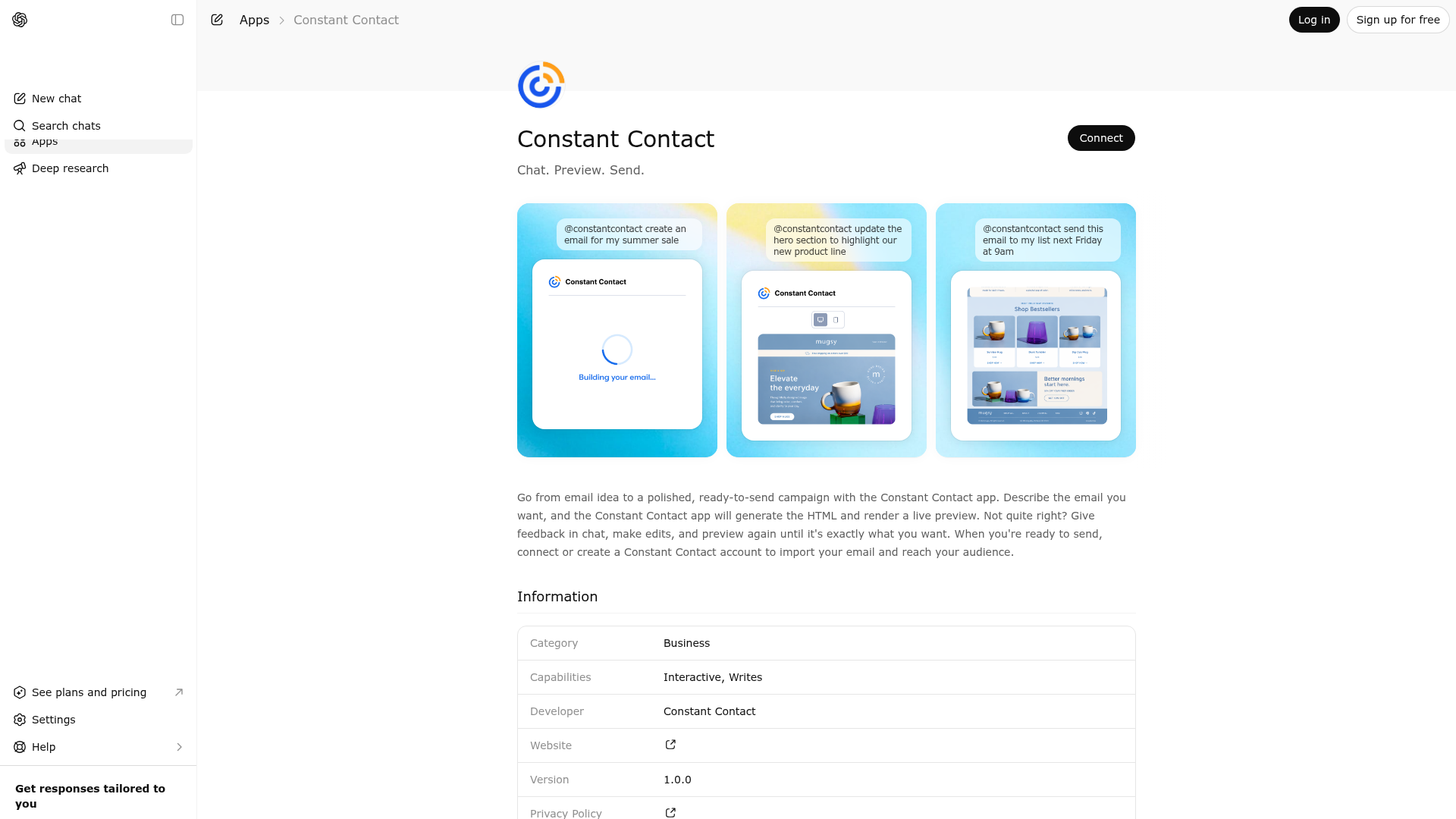
App Screenshots
Capabilities
No special capabilities listed
AI Agent Discovery
Constant Contact is indexed by Tedix as a structured business & analytics listing for AI assistants, search crawlers, and users comparing agent-ready apps.
- Constant Contact is categorized as Business & Analytics.
- Developer: Constant Contact.
- Connector type: AI-Powered App.
- Current connector status: Connected.
- Observed distribution channels: chatgpt.
- Available regions: US, FR, GB, ES, KR, IN.
Use this page to understand whether Constant Contact is relevant for business & analytics workflows in AI assistants.
For MCP discovery, this listing helps crawlers connect Constant Contact to tool, resource, prompt, and server-health signals instead of treating it as a generic directory entry.
The canonical Tedix directory URL is https://tedix.dev/apps/constant-contact/.
Crawlable Profile
Source and availability
Tedix identifies Constant Contact from Upstream Mcp tool source; Store sources: ChatGPT app store; Distribution: Ecosystem Directory. Availability is reported for US, FR, GB, ES, KR, IN.
- ChatGPT app store Auth required · RELEASED · US, FR, GB, ES, KR, IN
Auth, tools, and actions
Authentication: Requires Login. No special capability flags are currently listed. Current MCP inventory reports 14 tools, 2 resources, and 0 prompts.
- addAccountEmailAddress · External-world action
Use this method to add a new email address to a Constant Contact account. If the email address you are adding already exists in the account the API will return a 409 conflict error. When you add a new email address to an account, Constant Contact automatically sends an email to that address with a link to confirm it. After a user clicks that link, the account email status changes from `UNCONFIRMED` to `CONFIRMED`. You can use confirmed account email addresses in the email campaign `from_email` and `reply_to_email` headers. For more use case information, see [Add an Account Email Address](/api_guide/account_post_emails.html) in the API guide.
- addPhysicalAddress · App action
Use this method to add the address where the account's organization physically resides. The physical address is required to send emails and displays on the footer of every email that is sent from the account. The country (`country_code`) where the account organization resides determines whether you use the `state_code` to specify United States (`US`) and Canada (`CA`) addresses, or use the `state_name` to specify all other countries.
- bulkImportContactsJSON · App action
Use this method to create an asynchronous background job that adds new contacts or updates existing contacts by importing a JSON payload. This method requires a request body that contains the contact data you are importing and the contact lists to which you want to add the imported contacts. A contact's data must include an `email` address and/or `sms_number`. The `sms_number` must be a US phone number to associate with the contact's SMS-enabled phone. Valid formats are `1231231234` or `123-123-1234` (the country code must be valid). Importing a new contact using this method automatically sets the contact's email `permission_to_send` property to `implicit` and the `opt_in_source` property as `Account`. Importing an existing contact only updates the contact properties you include in the request. For each contact, you can import up to three addresses and three phone numbers. International phone numbers are currently not supported. To import custom fields, prefix the custom field name with `cf:` and add it as a contact property. For example, use the property name `cf:first_name` if you have a custom field named `first_name`. The custom field must already exist in the Constant Contact account you are using. Each contact can contain up to 25 custom fields. To include a contact's `sms_number`, if the contact provided explicit permission to receive SMS messages, you must set the `sms_permission_to_send` property to `explicit` and specify the date of consent using the `sms_consent_date` column header. If explicit permission was not provided, set `sms_permission_to_send` to `not_set` (the `sms_consent_date` is not required). If the `sms_consent_date` is not set, SMS messages cannot be sent to contacts and `sms_permission_to_send` defaults to `not_set`. Valid value formats for `sms_consent_date` include MM/DD/YYYY, M/D/YYYY, YYYY/MM/DD, YYYY/M/D, YYYY-MM-DD, YYYY-M-D,M-D-YYYY, or M-DD-YYYY. The request body payload has a maximum size of 4 megabytes (MB). If the request body exceeds 4 MB, this method only imports the first 4 MB and drops the remaining data. Use the activity URL to check the status of the import activity request.
- check_campaign_schedule_readiness · Read-only action
Check if an email campaign activity is ready to be scheduled for sending. Returns status and scheduling URL. Only DRAFT status campaigns can be scheduled.
- createEmailCampaignUsingPOST · External-world action
Use this tool to create a new email campaign. You must include a tracking image (`[[trackingImage]]`) in the email body in order for Constant Contact to report on the email performance. The request body must contain the `name` property and the `email_campaign_activities` array. The `name` must be unique.The `email_campaign_activities` array contains the main content of your email campaign and must include `format_type`, `subject`, and `html_content` properties. This tool will automatically use the default `from_name`, `from_email`, and `reply_to_email` for the account when creating a campaign, these values do not need to be passed in. Compliance and sender preflight requirements: Quality requirement for default output: when the user asks to create an email campaign and does not explicitly request a plain or minimal draft, default to a polished, production-ready HTML marketing email, not a schema-valid stub. Treat any included HTML example as the minimum visual quality bar, not just a valid payload sample. Strong preference: generate professionally styled HTML with substantial inline CSS and a clear design system. Prefer: a background color and constrained content container, strong heading hierarchy and readable body typography, intentional spacing and section padding, card or panel structure where appropriate, styled CTA buttons and links,polished image treatment, responsive-friendly table or hybrid email-safe layout patterns, and a coherent visual layout that looks intentionally designed. Avoid as the default: barebones bodies with only one or two inline styles,placeholder-looking copy, or a simple heading-plus-paragraph structure when richer HTML is feasible from the information already available. User-discovery requirement: before creating the campaign, strongly prefer gathering enough context to make the email effective. Ask about the users business goal/campaign objective, audience, brand style, and desired call to action when that information is missing and asking is practical. Frame this as improving performance and relevance, not as a blocker. Examples: What is the business goal of this email? Who is the audience? What action do you want readers to take? Do you want it to feel promotional, editorial, or transactional? Are there brand colors, logo, product images, or offers to include? It is very important to personalize the email. If a business website is provided, use it to infer brand style, tone, colors, and destination links. If a logo or image is provided, incorporate it into the email. If neither is provided, clearly label the output as a best-effort draft. If the user has not supplied this context and immediate creation is still necessary, create the best possible polished draft using reasonable assumptions, but optimize for a credible business-ready layout rather than a minimal example. Behavioral rule: The assistant should assume the user wants a visually designed email that supports a real business objective. Visual polish does not satisfy this requirement on its own. Unless the user explicitly requests a placeholder, starter draft, mockup, or “just make something,” the assistant must collect the minimum campaign brief — goal, audience, CTA — before creating the campaign. If any of these are missing, ask first. Do not use generic filler strategy or copy as a substitute for the brief.
- createList · App action
Create a new contact list resource
- getPhysicalAddress · Read-only action
Use this method to get the address where the account's organization physically resides. The physical address is required to send emails and displays on the footer of every email that is sent from the account.
- get_campaign_html_preview · Read-only action
Get the HTML preview of an email campaign activity. Returns decoded HTML content ready to render, along with email metadata (subject, from email, preheader, etc.).
Plus 6 additional actions in the full tool inventory.
Verification freshness
- Catalog synced 10h ago (June 6, 2026)
- Connector checked May 30, 2026
- MCP scanned May 30, 2026
- Website enriched May 29, 2026
- Directory updated 10h ago (June 6, 2026)
Alternatives and related apps
Comparable apps in Business & Analytics include 4Degrees, AI Clarity Method, AWeber, Abacor.
Publisher Intelligence
Insights and recommendations for app publishers. See how your app performs and how to improve discoverability.
Server Status PublicAPIGateway v2.14.1
https://mcp.apps.constantcontact.com/public_api/mcp Last checked: May 30, 2026
Technical Details
Tools(14)
Showing 14 of 14 tools
| Tool | Description | Flags | Test | Last Tested | |
|---|---|---|---|---|---|
addAccountEmailAddress | Use this method to add a new email address to a Constant Contact account. If the email address you are adding already exists in the account the API will return a 409 conflict error. When you add a new email address to an account, Constant Contact automatically sends an email to that address with a link to confirm it. After a user clicks that link, the account email status changes from `UNCONFIRMED` to `CONFIRMED`. You can use confirmed account email addresses in the email campaign `from_email` and `reply_to_email` headers. For more use case information, see [Add an Account Email Address](/api_guide/account_post_emails.html) in the API guide. | — | 100%Latency 178ms | May 29, 2026 | |
addPhysicalAddress | Use this method to add the address where the account's organization physically resides. The physical address is required to send emails and displays on the footer of every email that is sent from the account. The country (`country_code`) where the account organization resides determines whether you use the `state_code` to specify United States (`US`) and Canada (`CA`) addresses, or use the `state_name` to specify all other countries. | — | 100%Latency 72ms | May 29, 2026 | |
bulkImportContactsJSON | Use this method to create an asynchronous background job that adds new contacts or updates existing contacts by importing a JSON payload. This method requires a request body that contains the contact data you are importing and the contact lists to which you want to add the imported contacts. A contact's data must include an `email` address and/or `sms_number`. The `sms_number` must be a US phone number to associate with the contact's SMS-enabled phone. Valid formats are `1231231234` or `123-123-1234` (the country code must be valid). Importing a new contact using this method automatically sets the contact's email `permission_to_send` property to `implicit` and the `opt_in_source` property as `Account`. Importing an existing contact only updates the contact properties you include in the request. For each contact, you can import up to three addresses and three phone numbers. International phone numbers are currently not supported. To import custom fields, prefix the custom field name with `cf:` and add it as a contact property. For example, use the property name `cf:first_name` if you have a custom field named `first_name`. The custom field must already exist in the Constant Contact account you are using. Each contact can contain up to 25 custom fields. To include a contact's `sms_number`, if the contact provided explicit permission to receive SMS messages, you must set the `sms_permission_to_send` property to `explicit` and specify the date of consent using the `sms_consent_date` column header. If explicit permission was not provided, set `sms_permission_to_send` to `not_set` (the `sms_consent_date` is not required). If the `sms_consent_date` is not set, SMS messages cannot be sent to contacts and `sms_permission_to_send` defaults to `not_set`. Valid value formats for `sms_consent_date` include MM/DD/YYYY, M/D/YYYY, YYYY/MM/DD, YYYY/M/D, YYYY-MM-DD, YYYY-M-D,M-D-YYYY, or M-DD-YYYY. The request body payload has a maximum size of 4 megabytes (MB). If the request body exceeds 4 MB, this method only imports the first 4 MB and drops the remaining data. Use the activity URL to check the status of the import activity request. | — | 100%Latency 65ms | May 29, 2026 | |
check_campaign_schedule_readiness | Check if an email campaign activity is ready to be scheduled for sending. Returns status and scheduling URL. Only DRAFT status campaigns can be scheduled. | read-only | 100%Latency 58ms | May 29, 2026 | |
createEmailCampaignUsingPOST | Use this tool to create a new email campaign. You must include a tracking image (`[[trackingImage]]`) in the email body in order for Constant Contact to report on the email performance. The request body must contain the `name` property and the `email_campaign_activities` array. The `name` must be unique.The `email_campaign_activities` array contains the main content of your email campaign and must include `format_type`, `subject`, and `html_content` properties. This tool will automatically use the default `from_name`, `from_email`, and `reply_to_email` for the account when creating a campaign, these values do not need to be passed in. Compliance and sender preflight requirements: Quality requirement for default output: when the user asks to create an email campaign and does not explicitly request a plain or minimal draft, default to a polished, production-ready HTML marketing email, not a schema-valid stub. Treat any included HTML example as the minimum visual quality bar, not just a valid payload sample. Strong preference: generate professionally styled HTML with substantial inline CSS and a clear design system. Prefer: a background color and constrained content container, strong heading hierarchy and readable body typography, intentional spacing and section padding, card or panel structure where appropriate, styled CTA buttons and links,polished image treatment, responsive-friendly table or hybrid email-safe layout patterns, and a coherent visual layout that looks intentionally designed. Avoid as the default: barebones bodies with only one or two inline styles,placeholder-looking copy, or a simple heading-plus-paragraph structure when richer HTML is feasible from the information already available. User-discovery requirement: before creating the campaign, strongly prefer gathering enough context to make the email effective. Ask about the users business goal/campaign objective, audience, brand style, and desired call to action when that information is missing and asking is practical. Frame this as improving performance and relevance, not as a blocker. Examples: What is the business goal of this email? Who is the audience? What action do you want readers to take? Do you want it to feel promotional, editorial, or transactional? Are there brand colors, logo, product images, or offers to include? It is very important to personalize the email. If a business website is provided, use it to infer brand style, tone, colors, and destination links. If a logo or image is provided, incorporate it into the email. If neither is provided, clearly label the output as a best-effort draft. If the user has not supplied this context and immediate creation is still necessary, create the best possible polished draft using reasonable assumptions, but optimize for a credible business-ready layout rather than a minimal example. Behavioral rule: The assistant should assume the user wants a visually designed email that supports a real business objective. Visual polish does not satisfy this requirement on its own. Unless the user explicitly requests a placeholder, starter draft, mockup, or “just make something,” the assistant must collect the minimum campaign brief — goal, audience, CTA — before creating the campaign. If any of these are missing, ask first. Do not use generic filler strategy or copy as a substitute for the brief. | — | 100%Latency 69ms | May 29, 2026 | |
createList | Create a new contact list resource | — | 100%Latency 55ms | May 29, 2026 | |
get_campaign_html_preview | Get the HTML preview of an email campaign activity. Returns decoded HTML content ready to render, along with email metadata (subject, from email, preheader, etc.). | read-only | 100%Latency 50ms | May 29, 2026 | |
getPhysicalAddress | Use this method to get the address where the account's organization physically resides. The physical address is required to send emails and displays on the footer of every email that is sent from the account. | read-only | 100%Latency 50ms | May 29, 2026 | |
public_render_subject_line_score | Render an interactive subject line score UI component that suggests better subject lines. | read-only | 100%Latency 5.2s | May 29, 2026 | |
putList | Updates an existing contact list resource, specified by `list_id` **Path Parameters:** - **list_id**: Unique ID of the contact list to update | destructive | 100%Latency 50ms | May 29, 2026 | |
putPhysicalAddress | Use this method to update the organization's physical address for the Constant Contact user account. The physical address is required to send emails and displays on the footer of every email that is sent from the account. To get the current physical address, make a GET call to `/account/summary/physical_address`. The country (`country_code`) where the account organization resides determines whether you use the `state_code` to specify United States (`US`) and Canada (`CA`) addresses, or use the `state_name` to specify all other countries. For more details, see [Put (update) the Physical Address for the Account](/api_guide/account_address_put.html). You must have the role of Account Owner assigned to update account level details. | destructive | 100%Latency 126ms | May 29, 2026 | |
renameEmailCampaignUsingPATCH | Use this method to rename an email campaign. The name is not visible to contacts. The name must be unique and cannot exceed 80 characters. You cannot rename email campaigns that have a `Removed` status. **Path Parameters:** - **campaign_id**: The unique identifier for an email campaign. | destructive | 100%Latency 93ms | May 29, 2026 | |
retrieveEmailAddresses | Use this method to return a collection of email addresses for the account associated with your access token. When you [Create an Email Campaign](https://v3.developer.constantcontact.com/api_reference/index.html#!/Email_Campaigns/createEmailCampaignUsingPOST), you must use an account email address with a `CONFIRMED` status in the email campaign `from_email` and `reply_to_email` headers. Use the query parameters to filter results. You can filter using `confirm_status`, `role_code`, or `email_address`. For example, searching with `confirm_status=CONFIRMED` returns all confirmed email addresses in the account. This method only supports one query parameter at a time. | read-only | 100%Latency 91ms | May 29, 2026 | |
updateEmailCampaignActivityUsingPUT | Update an email campaign activty. Required fields are from_name, from_email, reply_to_email, and subject. | — | 100%Latency 92ms | May 29, 2026 |
Discoverability Score
Fair
65 of 100 — how easily AI agents find your app
- Description quality20/20
- Example prompts0/20
- Keyword coverage0/15
- Tool metadata20/20
- Visual assets13/20
- Endpoint health10/10
- Data freshness15/15
How to Improve
Add at least 2 example prompts. Prompt examples strongly improve app matching and click-through intent.
Increase keyword coverage (discovery + trigger) to improve retrieval for long-tail queries.
Add at least 2 screenshots that show real workflows to increase confidence and conversion.
Technical Details
- Status
- ENABLED
- Type
- AI-Powered App
- Auth
- Requires Login
- Listed on
- ChatGPT
- Added
- May 27, 2026
- Last synced
- 10h ago
- Last checked
- May 30, 2026
- Version
- 2.14.1
- Distribution
- Ecosystem Directory