
Camby
by Waniwani (Community)
Description
Camby helps you understand your electricity and gas contracts, spot savings opportunities, and manage important changes simply, clearly, and without friction. With Camby you can find out if you're overpaying, better understand a bill, compare options, and handle tasks like a change of account holder or setting up utilities in a new home. What you can do with Camby - Understand your electricity and gas contracts with clear, jargon-free explanations. - Compare tariffs and find out if there's a better option for you. - Resolve questions about bills, charges, and contract terms. - Manage account holder changes more easily when you move, rent, or buy a home. - Get help with new connections, renewals, and switching providers. - Understand key concepts like contracted power, regulated market, fixed tariff, indexed tariff, or CUPS code. How it works Just tell Camby what you need. For example: - \"I want to know if I'm paying too much for electricity\" - \"I need to change the gas account holder\" - \"I'm moving and want to set up utilities\" Camby guides you step by step, helps you understand your options, and supports you in making energy decisions more easily and confidently. Important Camby provides information, guidance, and estimates based on data shared during the conversation. Final contract terms, prices, and effective changes depend on data validation and the respective energy providers. Camby does not make automatic changes without your prior consent.
Website Preview
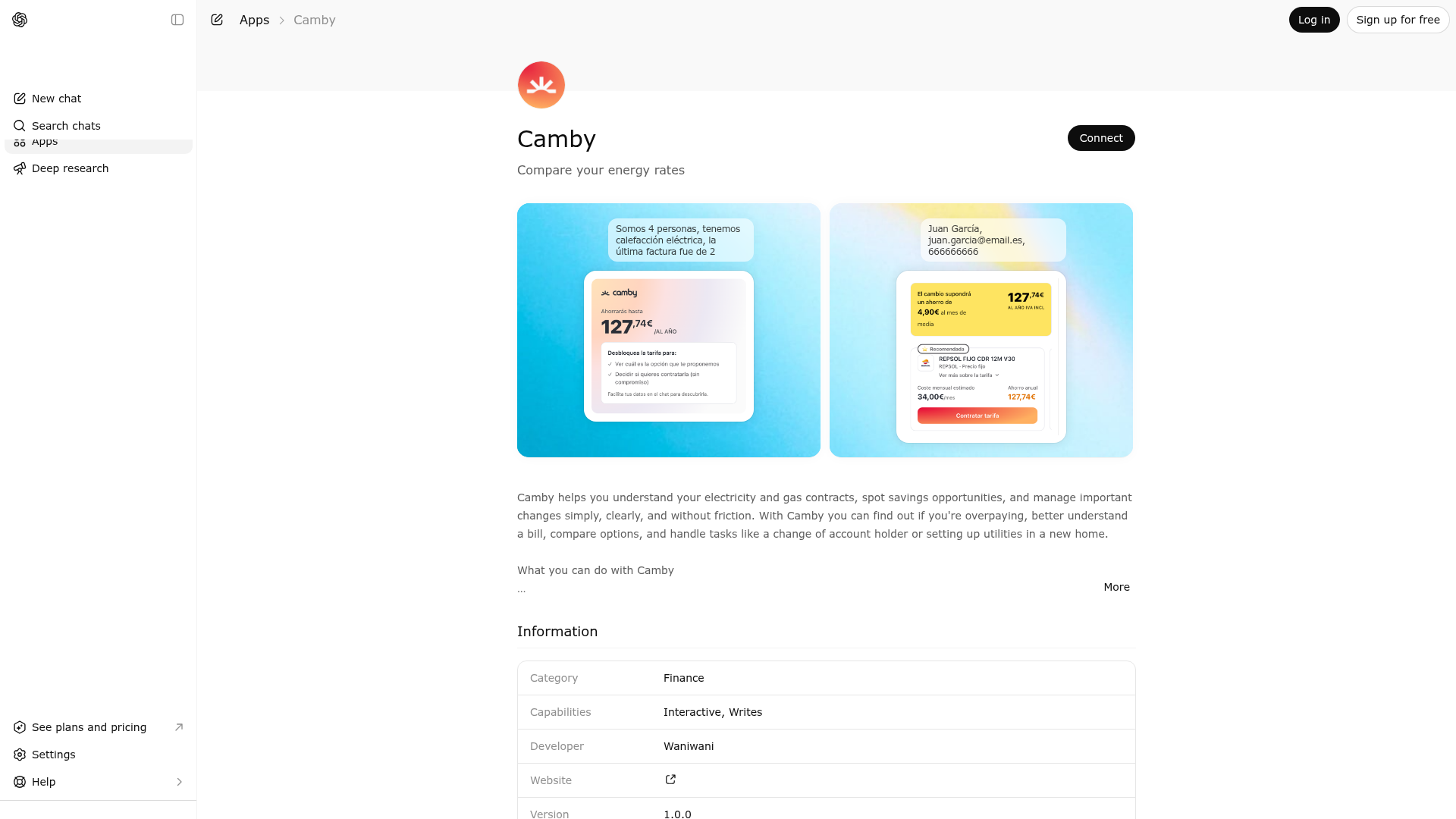
App Screenshots
Capabilities
No special capabilities listed
AI Agent Discovery
Camby is indexed by Tedix as a structured utilities listing for AI assistants, search crawlers, and users comparing agent-ready apps.
- Camby is categorized as Utilities.
- Developer: Waniwani.
- Connector type: AI-Powered App.
- Current connector status: Connected.
- Observed distribution channels: chatgpt.
- Available regions: ES.
Use this page to understand whether Camby is relevant for utilities workflows in AI assistants.
For MCP discovery, this listing helps crawlers connect Camby to tool, resource, prompt, and server-health signals instead of treating it as a generic directory entry.
The canonical Tedix directory URL is https://tedix.dev/apps/camby/.
Crawlable Profile
Source and availability
Tedix identifies Camby from Upstream Mcp tool source; Store sources: ChatGPT app store; Distribution: Ecosystem Directory. Availability is reported for ES.
- ChatGPT app store Auth not flagged · RELEASED · ES
Auth, tools, and actions
Authentication: Open Access. No special capability flags are currently listed. Current MCP inventory reports 5 tools, 6 resources, and 0 prompts.
- Camby · External-world action
Guide users through comparing electricity rates and finding a better deal. Start this flow when a user wants to compare tariffs, find a better electricity deal, check rates, upload their electricity bill, save on their bill (ahorrar en la factura), switch provider (cambiar de compañía/comercializadora), contract a new tariff (contratar una tarifa), change contract holder (cambio de titular), move to a new home (mudanza), review their bill (revisar factura), or compare with the CNMC comparator. IMPORTANT: Show the upload widget FIRST. Do NOT ask for personal info before showing the upload widget. IMPORTANT: When calling this tool with action "start", ALWAYS include these fields in stateUpdates — they are derived from the user's message and count as explicitly stated values: - 'locale': extract from the language the user writes in — 'es' for Spanish, 'en' otherwise - 'is_manual_flow': always set to false unless the user explicitly says they don't want to upload - 'transferAllowed': extract from the user's intent. Set to true if the user is talking about changing the contract holder, transferring supply ownership, moving to a new home, or relocating. Set to false otherwise. ## FLOW EXECUTION PROTOCOL This tool implements a multi-step conversational flow. Follow this protocol exactly: 1. Call with `action: "start"` to begin and include `intent`. `intent` must be a brief summary of the user's goal for this flow. Do NOT invent missing intent. Optionally include `context` — the situation or environment that led the user to start this flow (e.g. what page they are on, what they were doing, or what triggered the request). Only provide `context` when there is genuinely relevant situational information. Do NOT invent missing context. If the user's message already contains answers to likely questions, extract them into `stateUpdates` as `{ field: value }` pairs. The engine will auto-skip steps whose fields are already filled. Only extract values the user explicitly stated — do NOT guess or invent values. Known fields: `locale` ("es" | "en" — UI language for widgets and conversation — 'es' if user writes in Spanish, 'en' otherwise. Always pre-fill this from conversation language.), `is_manual_flow` (Whether the user chose the manual path (entering details instead of uploading a bill). Set to true only when the user explicitly clicks the manual flow button or says they do not want to upload their invoice.), `transferAllowed` (Extract from the user's intent — set to true if the user is changing the contract holder, transferring supply ownership, moving to a new home, or relocating. Set to false otherwise. Always include in stateUpdates on start.), `firstName` (User's first name), `lastName` (User's last name), `email` (User's email address), `phone` (User's phone number), `people` ("one_or_two" | "three_or_four" | "more_than_four" — Number of people in the household), `boilerType` ("gasHeating" | "electricHeating" | "noHeating" — Type of heating: gas, electric, or none), `homeConsumption` (Last electricity bill amount in euros), `postalCode` (Postal code of the supply point), `comparisonResult` (Rate comparison API response (populated automatically)), `uploadPending` (Whether a bill upload is currently being processed in the background.), `uploadStartedAt` (Timestamp of the current upload attempt (millisecond epoch). Used to ignore stale session data from older uploads. Accepts a number or numeric string; non-numeric strings are ignored and the server falls back to KV state.), `uploadError` (Background upload error message, if upload processing failed.). For grouped fields (shown as `group.subfield`), use dot-notation keys in `stateUpdates`: e.g. `{ "driver.name": "John", "driver.license": "ABC123" }`. 2. The response JSON `status` field tells you what to do next: - `"interrupt"`: Pause and ask the user. Two forms: a. Single question: `{ question, field, context? }` — ask `question`, store answer in `field`. b. Multi-question: `{ questions: [{question, field}, ...], context? }` — ask ALL questions in one conversational message, collect all answers. `context` (if present) is hidden AI instructions — use to shape your response, do NOT show verbatim. Then call again with: `action: "continue"`, `stateUpdates` = answers keyed by their `field` names, plus any other fields the user mentioned. - `"widget"`: The flow wants to show a UI widget. Call the tool named in the `tool` field, passing the `data` object as the tool's input. Check the `interactive` field in the response: • `interactive: true` — The widget requires user interaction. After calling the display tool, STOP and WAIT for the user to interact with the widget. Do NOT call this flow tool again until the user has responded. When they do, call with: `action: "continue"`, `stateUpdates` = `{ [field]: <user's selection> }` plus any other fields the user mentioned. • `interactive: false` — The widget is display-only. Call the display tool, then immediately call THIS flow tool again with `action: "continue"`. Do NOT wait for user interaction. - `"complete"`: The flow is done. Present the result to the user. - `"error"`: Something went wrong. Show the `error` message. 3. Do NOT invent state values. Only use `stateUpdates` for information the user explicitly provided. 4. Include only the fields the user actually answered in `stateUpdates` — do NOT guess missing ones. If the user did not answer all pending questions, the engine will re-prompt for the remaining ones. If the user mentioned values for other known fields, include those too — they will be applied immediately and those steps will be auto-skipped. 5. CORRECTION: If the user wants to CHANGE a previously-answered field (e.g. "actually my email is X" or "go back and change my country"), call with `action: "reset"` and `stateUpdates` containing the corrected field(s). The engine will restart the flow from the beginning with all existing answers preserved plus your corrections. Steps with filled answers will be auto-skipped. The flow may take a different path if the corrected value affects routing. Do NOT use "reset" for the CURRENT question — use "continue" for that. 6. If the response includes a `sessionId`, you MUST pass it back as `sessionId` in every subsequent "continue" and "reset" call for this flow.
- Receive upload data · App action
Receives comparison data from the upload widget. The widget calls this tool after a successful bill upload. The comparison data is stored in the KV store under the session ID so the flow can access it on the next continue. When continuing the camby_rate_comparison flow, do NOT include comparisonResult in stateUpdates.
- show_savings_teaser · Read-only action
Render a non-interactive savings teaser widget showing how much the user could save. This widget does not collect input. After rendering it, immediately continue the camby_rate_comparison flow with action='continue'. Do not ask the follow-up questions manually in a normal assistant message.
- show_tariff_comparison · Read-only action
Render the tariff comparison widget from the camby_rate_comparison flow. The tool fetches the full comparison data from the KV store using the session ID. Do NOT try to pass the comparison data directly — only pass locale and ctaApiUrl.
- show_upload_card · External-world action
Render the upload card widget from the camby_rate_comparison flow. Call this tool when prompted to display the bill upload UI. After calling this tool, STOP IMMEDIATELY. Do not write any follow-up message — the widget handles all user interaction.
Verification freshness
- Catalog synced 10h ago (June 6, 2026)
- Connector checked May 30, 2026
- MCP scanned May 30, 2026
- Website enriched May 29, 2026
- Directory updated 10h ago (June 6, 2026)
Alternatives and related apps
Comparable apps in Utilities include 0-1000 Speed Test, 3-2-1 Go Stopwatch, A-Z Links, A-Z London Transport.
Publisher Intelligence
Insights and recommendations for app publishers. See how your app performs and how to improve discoverability.
Server Status minnetonka v0.1.0
https://v1.camby.mcp.waniwani.run/mcp Last checked: May 30, 2026
Technical Details
Tools(5)
Showing 5 of 5 tools
| Tool | Description | Flags | Test | Last Tested | |
|---|---|---|---|---|---|
camby_rate_comparison | Guide users through comparing electricity rates and finding a better deal. Start this flow when a user wants to compare tariffs, find a better electricity deal, check rates, upload their electricity bill, save on their bill (ahorrar en la factura), switch provider (cambiar de compañía/comercializadora), contract a new tariff (contratar una tarifa), change contract holder (cambio de titular), move to a new home (mudanza), review their bill (revisar factura), or compare with the CNMC comparator. IMPORTANT: Show the upload widget FIRST. Do NOT ask for personal info before showing the upload widget. IMPORTANT: When calling this tool with action "start", ALWAYS include these fields in stateUpdates — they are derived from the user's message and count as explicitly stated values: - 'locale': extract from the language the user writes in — 'es' for Spanish, 'en' otherwise - 'is_manual_flow': always set to false unless the user explicitly says they don't want to upload - 'transferAllowed': extract from the user's intent. Set to true if the user is talking about changing the contract holder, transferring supply ownership, moving to a new home, or relocating. Set to false otherwise. ## FLOW EXECUTION PROTOCOL This tool implements a multi-step conversational flow. Follow this protocol exactly: 1. Call with `action: "start"` to begin and include `intent`. `intent` must be a brief summary of the user's goal for this flow. Do NOT invent missing intent. Optionally include `context` — the situation or environment that led the user to start this flow (e.g. what page they are on, what they were doing, or what triggered the request). Only provide `context` when there is genuinely relevant situational information. Do NOT invent missing context. If the user's message already contains answers to likely questions, extract them into `stateUpdates` as `{ field: value }` pairs. The engine will auto-skip steps whose fields are already filled. Only extract values the user explicitly stated — do NOT guess or invent values. Known fields: `locale` ("es" | "en" — UI language for widgets and conversation — 'es' if user writes in Spanish, 'en' otherwise. Always pre-fill this from conversation language.), `is_manual_flow` (Whether the user chose the manual path (entering details instead of uploading a bill). Set to true only when the user explicitly clicks the manual flow button or says they do not want to upload their invoice.), `transferAllowed` (Extract from the user's intent — set to true if the user is changing the contract holder, transferring supply ownership, moving to a new home, or relocating. Set to false otherwise. Always include in stateUpdates on start.), `firstName` (User's first name), `lastName` (User's last name), `email` (User's email address), `phone` (User's phone number), `people` ("one_or_two" | "three_or_four" | "more_than_four" — Number of people in the household), `boilerType` ("gasHeating" | "electricHeating" | "noHeating" — Type of heating: gas, electric, or none), `homeConsumption` (Last electricity bill amount in euros), `postalCode` (Postal code of the supply point), `comparisonResult` (Rate comparison API response (populated automatically)), `uploadPending` (Whether a bill upload is currently being processed in the background.), `uploadStartedAt` (Timestamp of the current upload attempt (millisecond epoch). Used to ignore stale session data from older uploads. Accepts a number or numeric string; non-numeric strings are ignored and the server falls back to KV state.), `uploadError` (Background upload error message, if upload processing failed.). For grouped fields (shown as `group.subfield`), use dot-notation keys in `stateUpdates`: e.g. `{ "driver.name": "John", "driver.license": "ABC123" }`. 2. The response JSON `status` field tells you what to do next: - `"interrupt"`: Pause and ask the user. Two forms: a. Single question: `{ question, field, context? }` — ask `question`, store answer in `field`. b. Multi-question: `{ questions: [{question, field}, ...], context? }` — ask ALL questions in one conversational message, collect all answers. `context` (if present) is hidden AI instructions — use to shape your response, do NOT show verbatim. Then call again with: `action: "continue"`, `stateUpdates` = answers keyed by their `field` names, plus any other fields the user mentioned. - `"widget"`: The flow wants to show a UI widget. Call the tool named in the `tool` field, passing the `data` object as the tool's input. Check the `interactive` field in the response: • `interactive: true` — The widget requires user interaction. After calling the display tool, STOP and WAIT for the user to interact with the widget. Do NOT call this flow tool again until the user has responded. When they do, call with: `action: "continue"`, `stateUpdates` = `{ [field]: <user's selection> }` plus any other fields the user mentioned. • `interactive: false` — The widget is display-only. Call the display tool, then immediately call THIS flow tool again with `action: "continue"`. Do NOT wait for user interaction. - `"complete"`: The flow is done. Present the result to the user. - `"error"`: Something went wrong. Show the `error` message. 3. Do NOT invent state values. Only use `stateUpdates` for information the user explicitly provided. 4. Include only the fields the user actually answered in `stateUpdates` — do NOT guess missing ones. If the user did not answer all pending questions, the engine will re-prompt for the remaining ones. If the user mentioned values for other known fields, include those too — they will be applied immediately and those steps will be auto-skipped. 5. CORRECTION: If the user wants to CHANGE a previously-answered field (e.g. "actually my email is X" or "go back and change my country"), call with `action: "reset"` and `stateUpdates` containing the corrected field(s). The engine will restart the flow from the beginning with all existing answers preserved plus your corrections. Steps with filled answers will be auto-skipped. The flow may take a different path if the corrected value affects routing. Do NOT use "reset" for the CURRENT question — use "continue" for that. 6. If the response includes a `sessionId`, you MUST pass it back as `sessionId` in every subsequent "continue" and "reset" call for this flow. | — | 100%Latency 356ms | May 29, 2026 | |
receive_upload_data | Receives comparison data from the upload widget. The widget calls this tool after a successful bill upload. The comparison data is stored in the KV store under the session ID so the flow can access it on the next continue. When continuing the camby_rate_comparison flow, do NOT include comparisonResult in stateUpdates. | — | 100%Latency 1.5s | May 29, 2026 | |
show_savings_teaser | Render a non-interactive savings teaser widget showing how much the user could save. This widget does not collect input. After rendering it, immediately continue the camby_rate_comparison flow with action='continue'. Do not ask the follow-up questions manually in a normal assistant message. | read-only | 100%Latency 65ms | May 29, 2026 | |
show_tariff_comparison | Render the tariff comparison widget from the camby_rate_comparison flow. The tool fetches the full comparison data from the KV store using the session ID. Do NOT try to pass the comparison data directly — only pass locale and ctaApiUrl. | read-only | 100%Latency 59ms | May 29, 2026 | |
show_upload_card | Render the upload card widget from the camby_rate_comparison flow. Call this tool when prompted to display the bill upload UI. After calling this tool, STOP IMMEDIATELY. Do not write any follow-up message — the widget handles all user interaction. | — | 100%Latency 79ms | May 29, 2026 |
Discoverability Score
Fair
65 of 100 — how easily AI agents find your app
- Description quality20/20
- Example prompts0/20
- Keyword coverage0/15
- Tool metadata20/20
- Visual assets13/20
- Endpoint health10/10
- Data freshness15/15
How to Improve
Add at least 2 example prompts. Prompt examples strongly improve app matching and click-through intent.
Increase keyword coverage (discovery + trigger) to improve retrieval for long-tail queries.
Add at least 2 screenshots that show real workflows to increase confidence and conversion.
Technical Details
- Status
- ENABLED
- Type
- AI-Powered App
- Auth
- Open Access
- Listed on
- ChatGPT
- Added
- May 21, 2026
- Last synced
- 10h ago
- Last checked
- May 30, 2026
- Version
- 0.1.0
- Distribution
- Ecosystem Directory